
BearPDF
BearPDF is a PDF finishing tool that runs in your browser. Drop in one or more PDFs and run them through a pipeline that can merge, organise, split, watermark, flatten, compress, and encrypt them.
Everything happens in your browser. Your files are never uploaded, and nothing is stored on a server.
Use it at bearpdf.bearwoodlabs.com. The app starts in demo mode, so you can try the whole pipeline before buying. A license costs $59, paid once, on Gumroad.
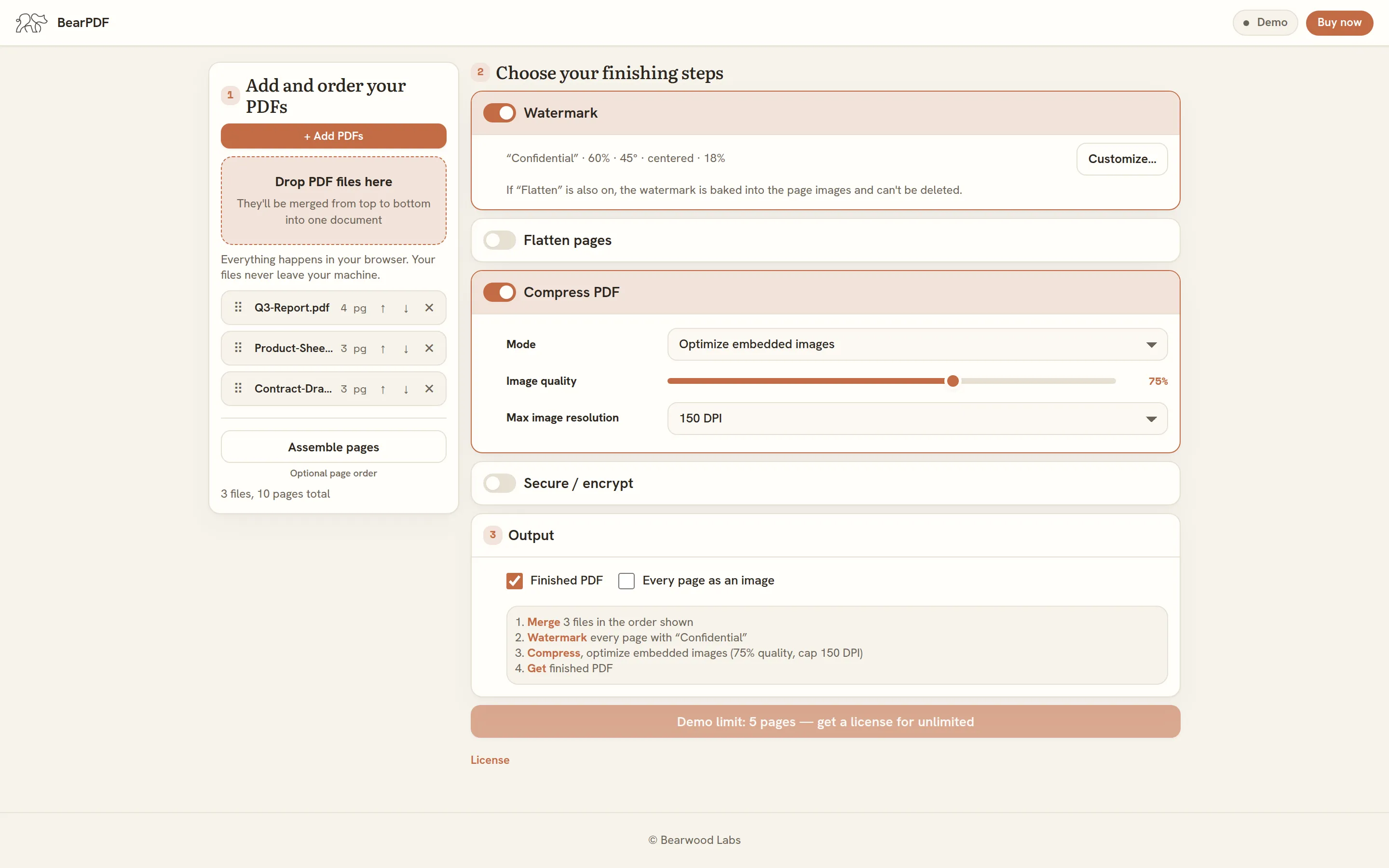
The pipeline
Section titled “The pipeline”BearPDF runs your files through up to six steps, each optional except Merge:
- Merge: combine every PDF you drop in, top to bottom, into one document.
- Organise pages (optional): open the page thumbnail grid to reorder, rotate, or remove pages across every file at once. Add split points and filenames when you want the page plan downloaded as separate PDFs.
- Watermark: stamp text or a logo image onto every page. This happens before flattening, so it can’t be stripped back out afterward.
- Flatten: re-render pages as images. The encoding adapts per page to keep file size down without losing quality, and hyperlinks are preserved by default.
- Compress: shrink the finished file, either by optimizing embedded images or just tidying the PDF structure.
- Encrypt: lock the file down with AES encryption, an owner permissions password, an optional password to open the file, and checkboxes for printing, copying, editing, and annotating.
You choose the output: one finished PDF, separate PDFs from your split points, every page exported as an image, or a combination of these.
Demo vs. licensed
Section titled “Demo vs. licensed”BearPDF works fully in demo mode, but runs are capped at 5 pages. Buying a license removes that cap. The license status shows as a Demo badge in the top-right corner of the app: click it to enter your key once you’ve bought.
Find your way around
Section titled “Find your way around”- Getting started: walk through adding files, choosing your finishing steps, and running the pipeline.
- Common workflows: the quickest first thing to do, plus recipes for securing, watermarking, and shrinking your resources.
- Keep your PowerPoint links: restore the hyperlinks that PowerPoint for Mac drops when it exports to PDF.
- Activating your license: where your key lives and how to unlock unlimited pages.
- FAQ & fixes: privacy, compression behavior, hyperlinks, PowerPoint files, and browser support.